
Sprite Background Remover: Keep Pixel Edges and Frame Size
Prepare sprites, icons and concept-art cutouts without confusing smooth photo edges with deliberate pixel art. Check transparency before importing a game asset.
Inspect pixels before importing your sprite
Switch the backdrop or check your own file. This checker runs on your device; it does not upload or remove anything.

PNG, JPG or WebP · Up to 10 MB and 12 megapixels
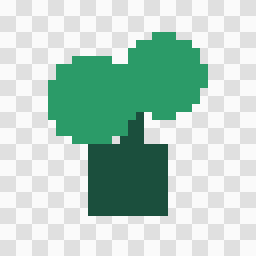
The sprite is a hand-drawn test fixture, not an AI removal result. It is displayed with crisp pixel scaling.
In this guide
Choose a method for the kind of asset
A painted character and a 32-pixel sprite have different needs. AI background removal can be useful for larger illustrations, but it may soften a deliberate pixel edge or miss detached details in a small sprite. A flat-color selection in your sprite editor may be more predictable for a tiny asset.
Keep the original project or sprite sheet. Avoid enlarging pixel art just to meet an arbitrary photo-resolution recommendation. The downloadable 32 × 32 fixture above is hand-drawn for testing transparency; it is not evidence of an AI removal result.
Test one frame before processing a sheet
Choose a representative frame with detached details: a weapon tip, antenna, loose particle or shadow. If you try automatic removal, compare the output with that original at native size and at a crisp integer zoom.
Check that every isolated piece remains. A foreground model can treat small disconnected features as background. Do not process an entire animation until the test frame passes your review. If a simple selection works better, use it.
Inspect transparency and pixel edges
Use the checker above to count transparent and partly transparent pixels. Partial alpha is normal for soft painted edges, but it may be unwanted on a sprite designed for a hard pixel grid. The checker does not decide which style is correct.
Preview against both light and dark colors, then inspect the actual exported image in your sprite editor. Nearest-neighbor scaling helps inspect a pixel grid without introducing interpolated colors; it does not repair pixels already changed by another operation.
Preserve the canvas and animation alignment
Keep frame width, height, origin and padding consistent with your game’s import settings. Automatic trimming or changing the canvas can move a character relative to the other frames. Background removal and sprite-sheet layout are separate operations.
BGClear’s composite editor uses its own stage layout. Do not assume its rendered export preserves a sprite sheet’s exact frame grid. Check the downloaded dimensions and restore the intended canvas in your sprite editor before importing.
Download PNG and test inside the game
Choose Background, None and a PNG download if you want transparency. JPEG will flatten the image. Compare the downloaded dimensions and animation alignment with the original, then test the asset on an actual scene background.
If the PNG looks correct in the transparency checker but has a fringe in the game, inspect the engine’s texture filtering, scaling and import settings. The removal mask is only one part of the display pipeline.
Keep a repeatable acceptance checklist
Check missing fragments, unwanted halos, partial alpha, frame dimensions and alignment. Keep the test frame and original in a reference folder before working through the remaining art.
For repeated asset preparation, describe your workflow before assuming an automated batch will meet pixel-art requirements. A small successful test is more useful than a large pile of inconsistent outputs.
Frequently asked questions
Will AI preserve every pixel of my sprite?
No guarantee. Models intended for photographs can alter deliberate pixel edges and disconnected details. Test a frame; use a pixel-editor selection when exact control matters.
Should I resize a tiny sprite before removal?
Keep the original. Upscaling does not add original detail and can introduce interpolated colors. Prefer a method suited to the native pixel grid.
Can I process a complete sprite sheet?
Try a representative frame first. Multiple disconnected subjects and fixed frame grids need care. Verify canvas dimensions and every frame before replacing a working sheet.